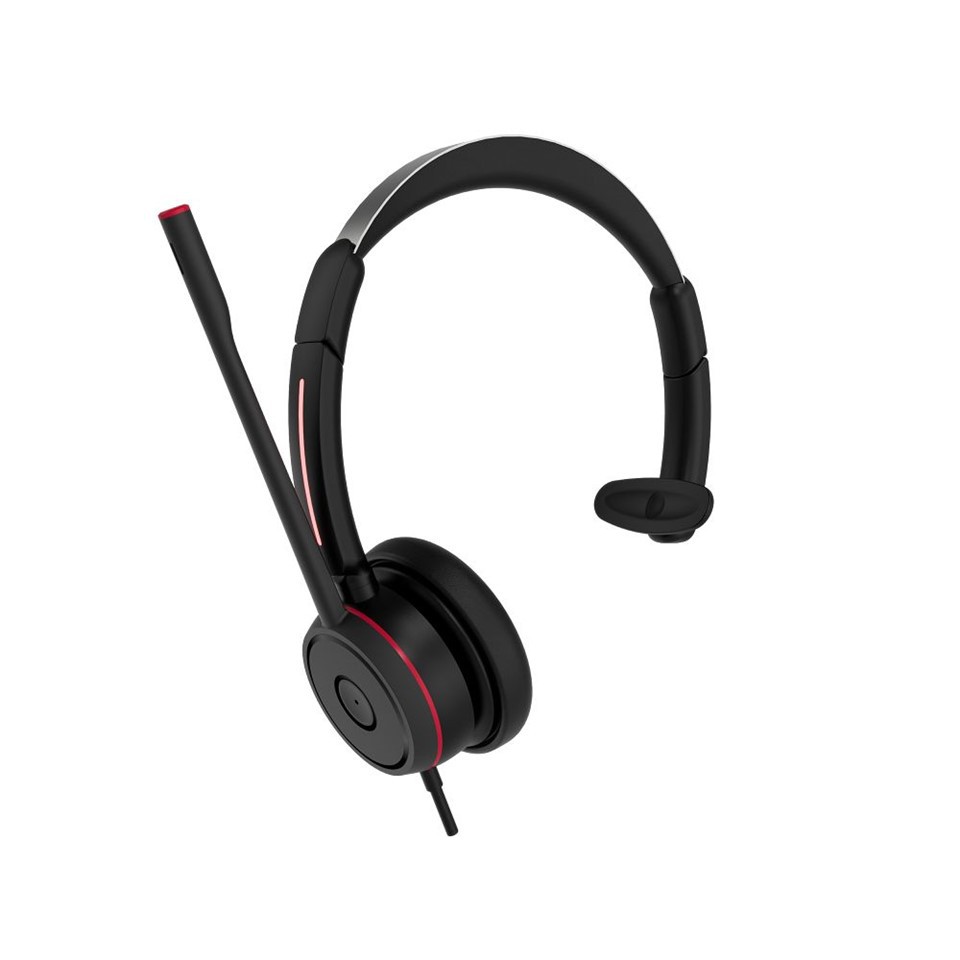
Hey there! As a supplier of Teams Single Ear Headphones, I often get asked how to make the audio louder on these nifty little devices. It can be super frustrating when you're on an important Teams call, and the audio just isn't cutting it. So, let's dive into some tips and tricks to crank up that volume and make your calls crystal clear.
First off, it's essential to understand that there are a few different places where you can adjust the volume. The first stop is usually the device you're using to connect to Teams. Whether it's a laptop, desktop, or mobile phone, most devices have their own volume controls. On a Windows PC, for example, you can click on the speaker icon in the taskbar and use the slider to increase the volume. On a Mac, you can use the volume keys on your keyboard or click on the speaker icon in the menu bar.
But sometimes, just adjusting the device volume isn't enough. That's where the settings within Teams come in. Open up Teams and click on your profile picture in the top right corner. Then, select "Settings" and go to the "Audio & Video" tab. Here, you can adjust the speaker volume specifically for Teams. You'll also find options to test your speakers and microphone to make sure everything is working correctly.
Another thing to consider is the type of headphones you're using. If you're using ENC Single-ear Headphones, they may have their own volume controls. Some headphones come with a built-in volume button that you can use to increase or decrease the volume directly on the device. If your headphones have this feature, give it a try and see if it makes a difference.
It's also worth checking the audio settings on your headphones. Some headphones allow you to adjust the equalizer settings, which can enhance the audio quality and make it louder. You can usually find these settings in the headphone's companion app or through the device's audio settings. Experiment with different equalizer presets to see which one works best for you.
Now, let's talk about some external factors that can affect the audio volume. If you're in a noisy environment, background noise can make it difficult to hear the audio clearly. In this case, using headphones with noise-canceling technology can be a game-changer. Best Single-Ear Headset For Teams Calls often come with noise-canceling features that can block out background noise and make the audio louder and clearer.
Another factor to consider is the audio source. If you're playing music or watching a video on Teams, the volume of the audio source can also affect how loud the audio sounds on your headphones. Make sure the volume of the audio source is turned up to an appropriate level. You can also try using different audio sources to see if that makes a difference.
In addition to adjusting the volume settings, there are a few other things you can do to improve the audio quality on your Teams calls. One of the most important things is to make sure your headphones are properly connected to your device. Check the audio cable or Bluetooth connection to make sure it's secure. If you're using Bluetooth headphones, make sure they're paired correctly and within range of your device.
Another tip is to clean your headphones regularly. Over time, dirt and debris can build up on the earpieces and microphone, which can affect the audio quality. Use a soft, dry cloth to clean the earpieces and microphone, and make sure to remove any debris from the audio jack or charging port.
Finally, if you're still having trouble getting the audio to be loud enough, it may be worth considering upgrading your headphones. Best Single Ear Headset With Mic are designed specifically for use with Teams and other communication platforms, and they often offer better audio quality and louder volume than standard headphones.
So, there you have it! These are some of the best ways to make the audio louder on Teams single ear headphones. By following these tips and tricks, you should be able to enjoy clear, loud audio on your Teams calls. If you have any other questions or need further assistance, don't hesitate to reach out. We're here to help you get the most out of your Teams experience.
If you're interested in purchasing high-quality Teams Single Ear Headphones, we'd love to hear from you. Our team of experts can help you find the perfect headphones for your needs and budget. Contact us today to start the conversation and take your Teams calls to the next level.
References:

- Personal experience as a Teams Single Ear Headphones supplier.
- General knowledge of audio technology and Teams settings.