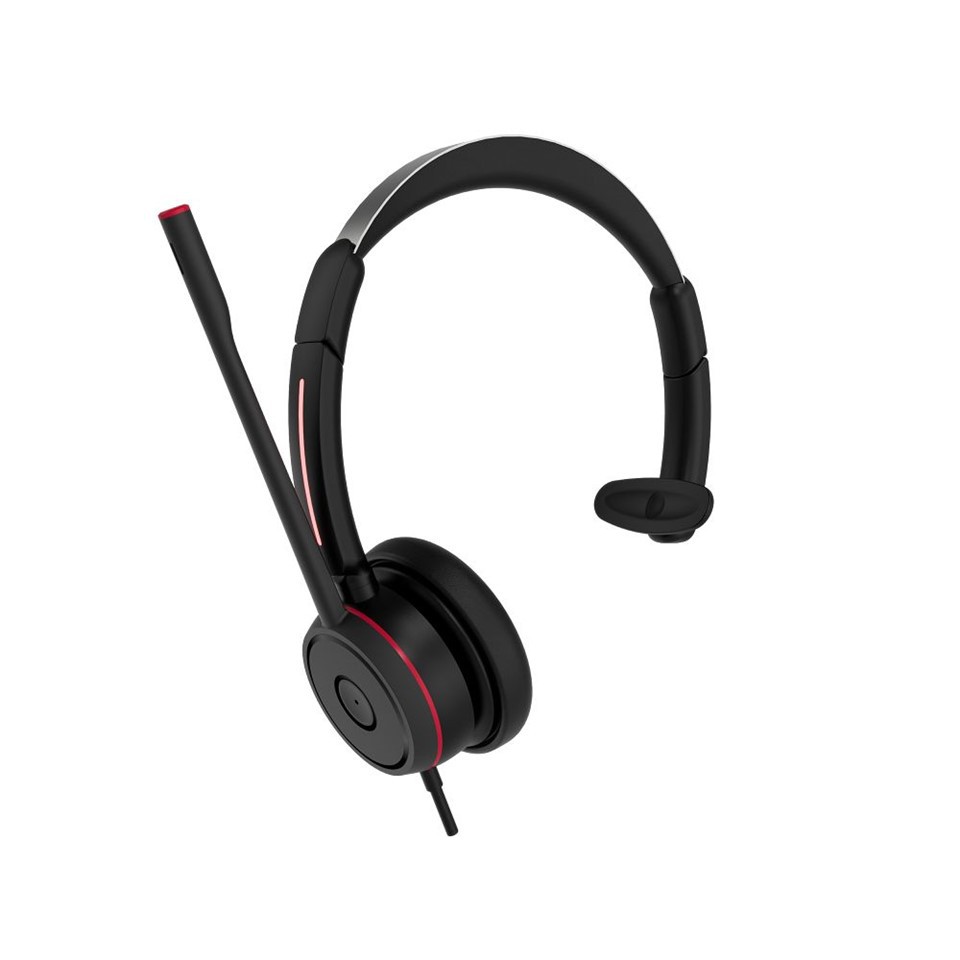
Hey there! As a supplier of wireless bluetooth headphones, I've heard my fair share of complaints about connection issues. It's super annoying when you're in the middle of enjoying your favorite tunes or having an important call, and suddenly, your headphones lose connection. But don't worry, I've got some tips and tricks to help you prevent this from happening.
1. Keep Your Devices Close
One of the most common reasons for connection loss is distance. Bluetooth has a limited range, usually around 30 feet (about 10 meters). If you move too far away from the paired device, like your phone or laptop, the signal can weaken and eventually cut out. So, try to stay within that range when you're using your headphones. If you need to move around, keep your paired device in your pocket or close by. This simple step can save you a lot of frustration.
2. Avoid Interference
Bluetooth signals can be disrupted by other electronic devices that operate on similar frequencies. Wi-Fi routers, microwaves, and even some cordless phones can cause interference. When you're using your wireless bluetooth headphones, try to keep them away from these devices. For example, if you're working from home and using your headphones while your Wi-Fi router is nearby, you might experience connection issues. Try moving your router to a different location or turning it off temporarily if you're not using the internet. Also, avoid using your headphones in areas with a lot of electronic equipment, like a server room or a crowded office.
3. Update Your Device's Software
Both your headphones and the paired device need to have the latest software updates. Manufacturers often release updates to fix bugs and improve the performance of their products, including the bluetooth connection. Check the manufacturer's website for your headphones and the device you're pairing them with regularly. For your phone or laptop, you can usually find the software update option in the settings menu. Installing these updates can make a big difference in the stability of your bluetooth connection.
4. Clean Your Headphones
Over time, dirt and debris can build up on the bluetooth antenna of your headphones, which can affect the signal strength. Use a soft, dry cloth to gently clean the outside of your headphones, especially around the area where the bluetooth antenna is located. Be careful not to damage any of the components. If your headphones have removable ear pads, take them off and clean them as well. This can help maintain a good connection and also keep your headphones looking and smelling fresh.
5. Reset Your Headphones
If you're still experiencing connection problems, try resetting your headphones. The process for resetting can vary depending on the model, but usually, you can find the instructions in the user manual. Typically, it involves holding down a combination of buttons on the headphones for a certain amount of time until the lights flash or the headphones enter pairing mode. After resetting, try pairing your headphones with the device again. This can often fix minor glitches and restore a stable connection.
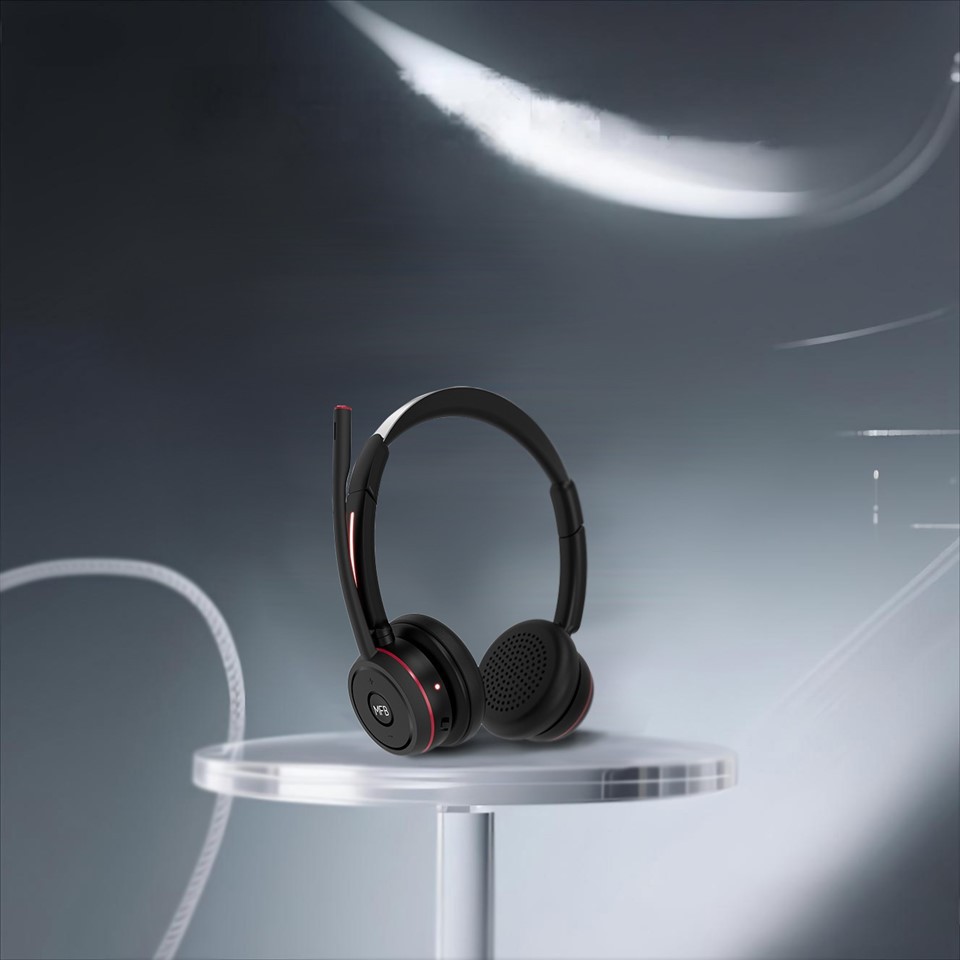
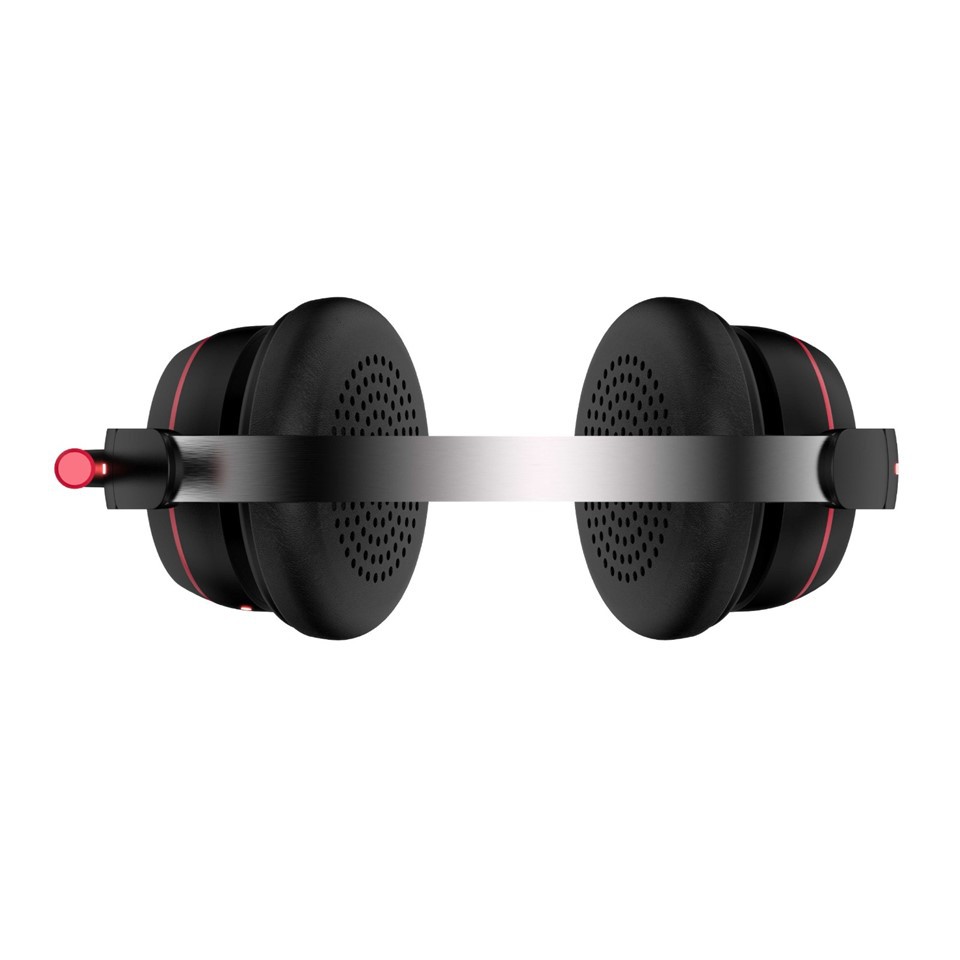
6. Check the Battery Level
A low battery can also cause connection issues. Make sure your headphones are fully charged before using them. If you notice that the connection starts to become unstable as the battery runs low, it's probably time to recharge. Some headphones have a battery indicator that shows you how much charge is left. Keep an eye on this and charge your headphones regularly to avoid any connection problems.
7. Pair Your Headphones Correctly
Sometimes, a simple pairing error can lead to connection issues. When you're pairing your wireless bluetooth headphones with a new device, make sure you follow the correct steps. First, put your headphones in pairing mode. This usually involves pressing and holding a button on the headphones until the pairing light starts flashing. Then, on your device, go to the bluetooth settings and search for available devices. Select your headphones from the list and follow the on - screen instructions to complete the pairing process. If you've paired your headphones with multiple devices before, make sure you're only connected to the device you want to use at the moment. Some devices can connect to multiple bluetooth devices simultaneously, which can cause interference.
8. Replace Old or Damaged Cables
If your headphones come with a charging cable or an auxiliary cable for wired use, make sure they're in good condition. A damaged cable can affect the performance of your headphones, including the bluetooth connection. If you notice any fraying or damage to the cable, replace it with a new one. Using a high - quality cable can also improve the charging speed and the overall performance of your headphones.
9. Consider the Environment
The environment you're in can also impact the bluetooth connection. For example, if you're outside in extreme weather conditions, like heavy rain or extreme heat, it can affect the signal. In cold weather, the battery life of your headphones might also be reduced, which can lead to connection issues. Try to use your headphones in a stable environment whenever possible. If you need to use them outside, make sure they're protected from the elements.
10. Use a Bluetooth Adapter
If you're having trouble connecting your headphones to a device that doesn't have built - in bluetooth, or if the built - in bluetooth on your device is weak, you can use a bluetooth adapter. These adapters plug into a USB port on your device and provide a stronger bluetooth signal. You can find a variety of bluetooth adapters on the market, and they're usually easy to install. Check out Best Usb Wireless Headset for some great options.
Special Considerations for Working from Home
If you're working from home, you might have specific needs for your wireless bluetooth headphones. You need a headset that can provide a clear connection for calls and meetings. The Best Bluetooth Headset For Working From Home is designed to meet these requirements. These headsets often have noise - cancelling features to block out background noise and a high - quality microphone for clear communication.
If you're in a professional setting, the Bluetooth Headset For Work is a great choice. They offer a stable connection and are built to last. Make sure to choose a headset that suits your work environment and needs.
Conclusion
Preventing your wireless bluetooth headphones from losing connection doesn't have to be a headache. By following these simple tips, you can enjoy a stable and reliable bluetooth connection. If you're in the market for high - quality wireless bluetooth headphones or have any questions about our products, feel free to reach out. We're here to help you find the perfect headphones for your needs and ensure you have a great listening experience.
References
- Bluetooth Special Interest Group. (n.d.). Bluetooth Technology Basics.
- Manufacturer's user manuals for various wireless bluetooth headphones.
- Online resources on electronics and wireless technology.